MCP server guide
StratPool has a Model Context Protocol (MCP) server, so an AI agent can post investment requirements for you. You approve each agent with your wallet and can disconnect it at any time.
What an agent can do
| An agent can | An agent can't |
|---|---|
| Post investment requirements as you, using the same rules as the web form. | Withdraw your funds, see your strategies or act for any other account. |
Before you start
- A StratPool account and the wallet linked to it.
- An MCP client that supports remote HTTP servers and OAuth.
1. Add the server to your client
In your dashboard, open the Invest page and select Connect agent. The dialog shows the configuration with the correct server URL.
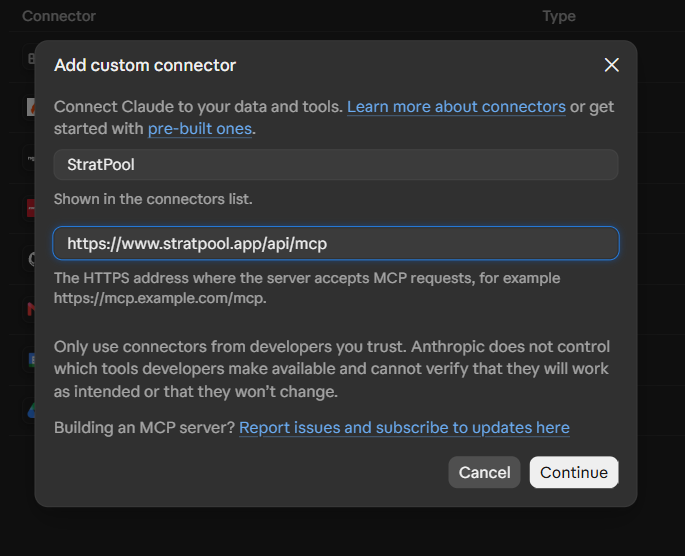
Add it to your MCP client. Most clients use this format:
{
  "mcpServers": {
    "stratpool": {
      "type": "http",
      "url": "https://<your-stratpool-domain>/api/mcp"
    }
  }
}
2. Log in and approve
The first time the agent connects, your client opens a StratPool page in your browser. No API key is needed.
Step 1
Connect
The client calls the server and is told to sign in.
Step 2
Log in
You log in to StratPool in your browser.
Step 3
Approve
You sign an approval message with your wallet.
Step 4
Return
The client receives a token for your account.
- If you aren't logged in, enter your email and select Continue, then connect your wallet.
- Read what the agent is asking for, and check the name and the site it will return to.
- Select Approve with wallet and sign the message, or select Deny to refuse.
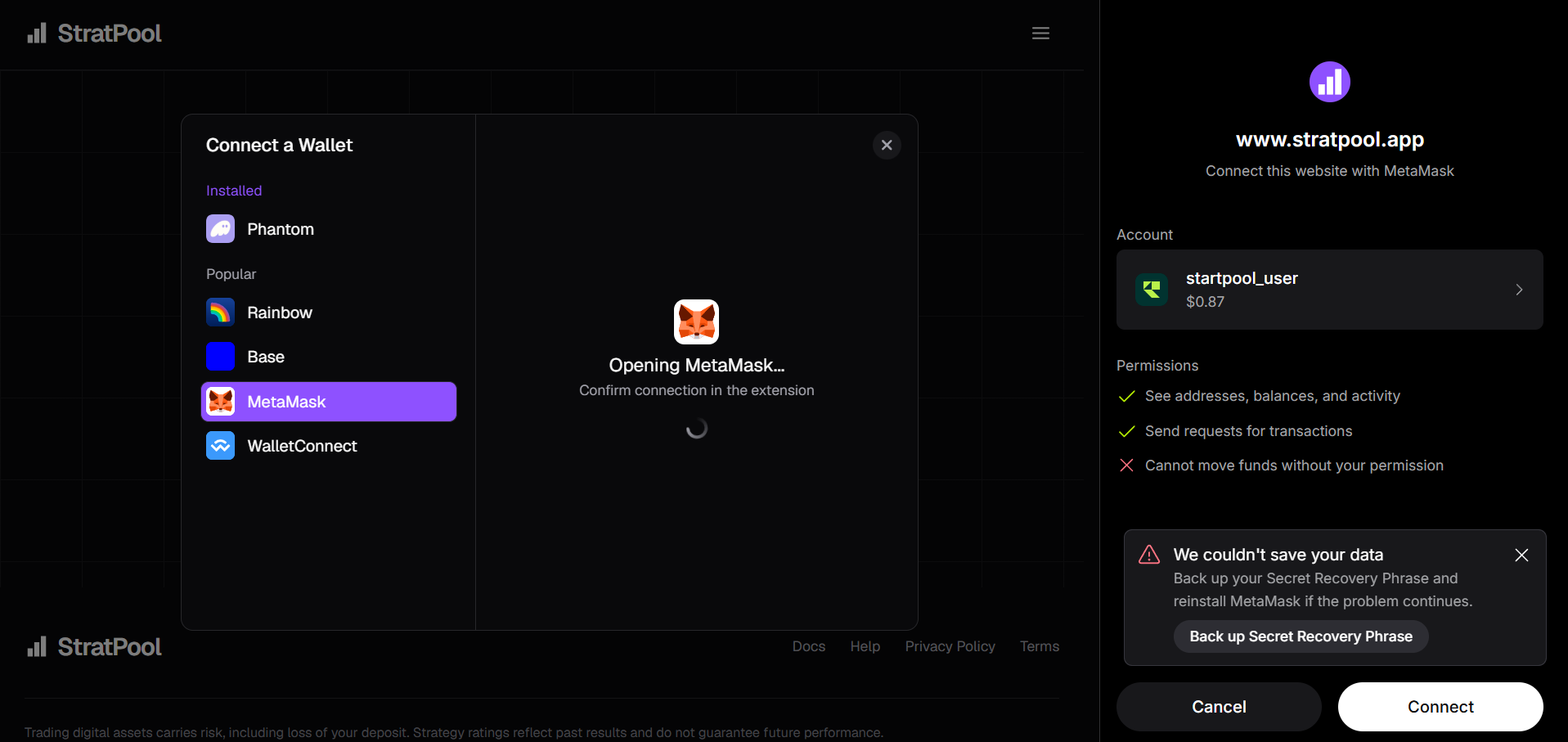
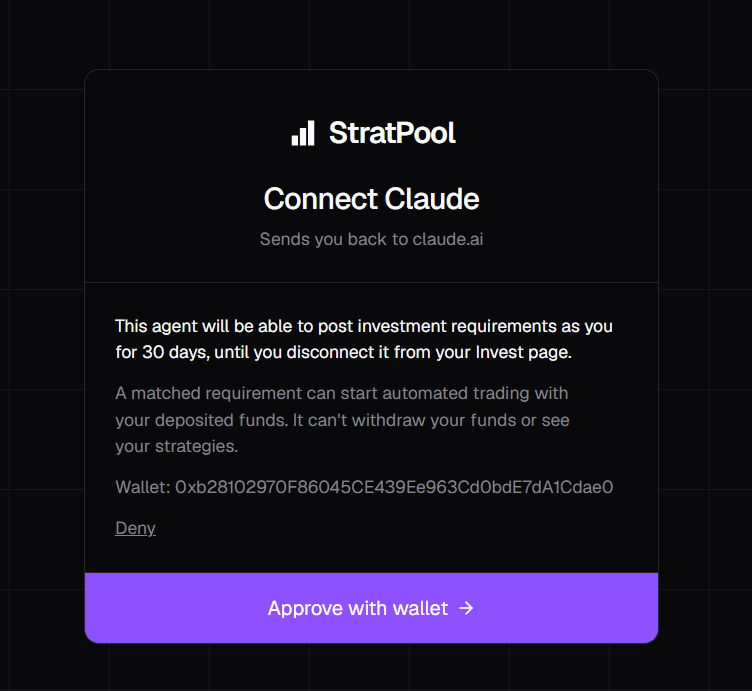
Signing is free and sends no transaction. Your browser then returns to your client.
3. Post a requirement
Ask your agent in plain language, for example:
Post a StratPool requirement for 2500 USDC on Sepolia, spot ETH/USDC, medium risk, for 3 months.
The agent calls the post_investor_requirement tool. The account always comes from the agent's access token, never from the tool's input.
{
  "amount": "2500",
  "asset": "USDC",
  "chain": "SEPOLIA",
  "tradingType": "SPOT",
  "tradingPairs": ["ETH/USDC"],
  "riskLevel": "MEDIUM",
  "durationType": "FIXED",
  "durationValue": 3,
  "durationUnit": "MONTHS"
}
The requirement appears on your Invest page like any other. For what happens next, see Track your results.
Tool reference
| Field | Type | Rules |
|---|---|---|
amount | string | Whole tokens as a decimal above 0, such as "100.5". |
asset | string | A token symbol that exists on the chain, such as "USDC". |
chain | enum | ETHEREUM, BASE or SEPOLIA. |
tradingType | enum | SPOT or PERPETUALS. |
tradingPairs | string[] | 1 to 20 pairs, such as "ETH/USDC". |
riskLevel | enum | LOW, MEDIUM or HIGH. |
durationType | enum | FIXED or FLEXIBLE. |
durationValue | integer | 1 to 3650. Required when FIXED. |
durationUnit | enum | DAYS or MONTHS. Required when FIXED. |
On success the tool returns the created requirement, with amount in the token's base units.
Access and disconnecting
Agent access lasts 30 days. After that, your client asks you to approve it again.
To cut off access sooner, open Invest, select Agent connected, then Disconnect all agents. This removes every connected agent at once.
Troubleshooting
| You see | What to do |
|---|---|
| Invalid or revoked token | Access expired or was disconnected. Reconnect the server in your client and approve again. |
| Can't connect this agent | The client's request was invalid. Remove the server, add it again and retry. |
| No token with symbol … exists | The asset isn't available on that chain. Check the symbol and chain. |
| A fixed duration needs a length and a unit | Include durationValue and durationUnit, or use FLEXIBLE. |